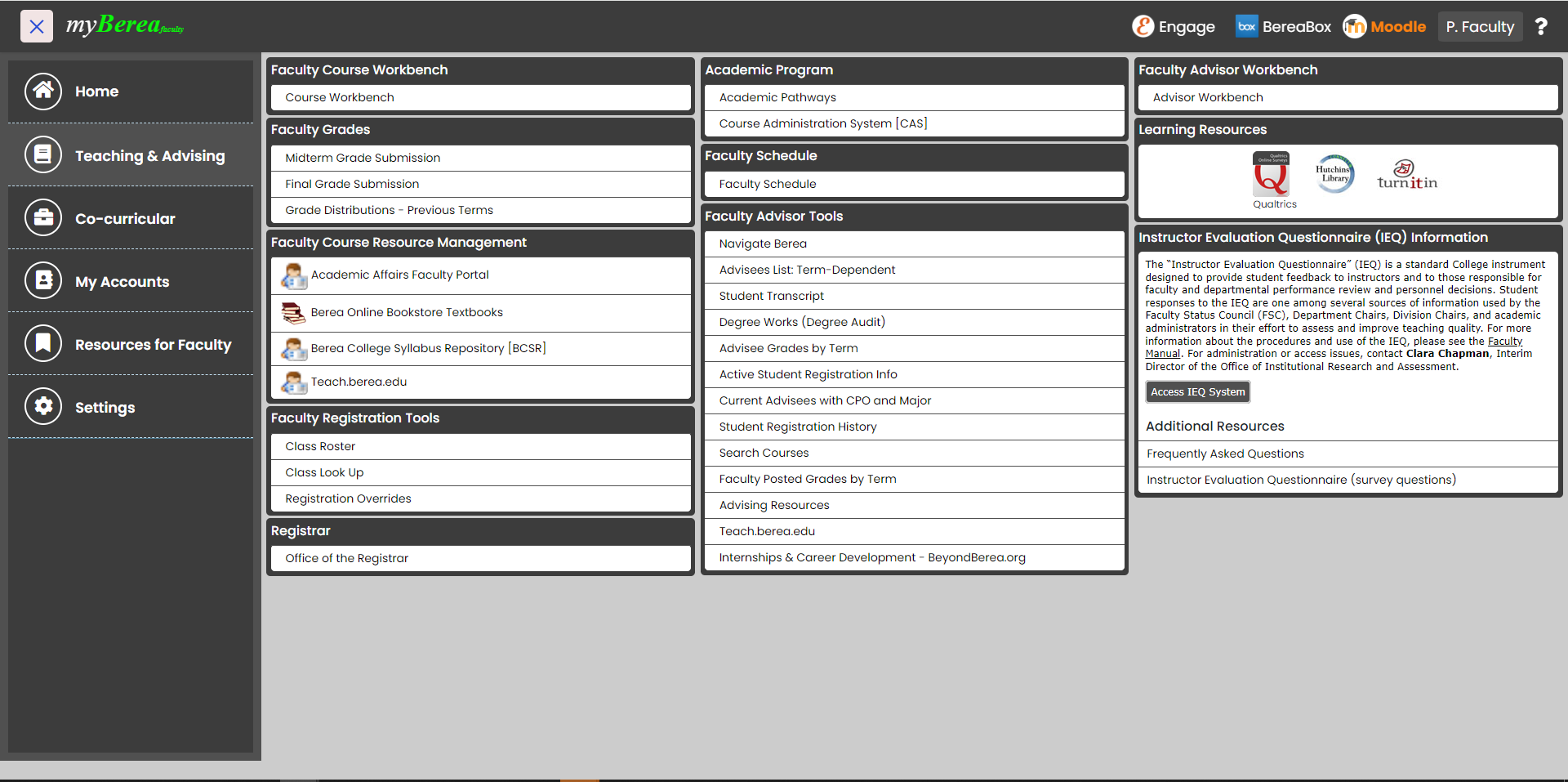
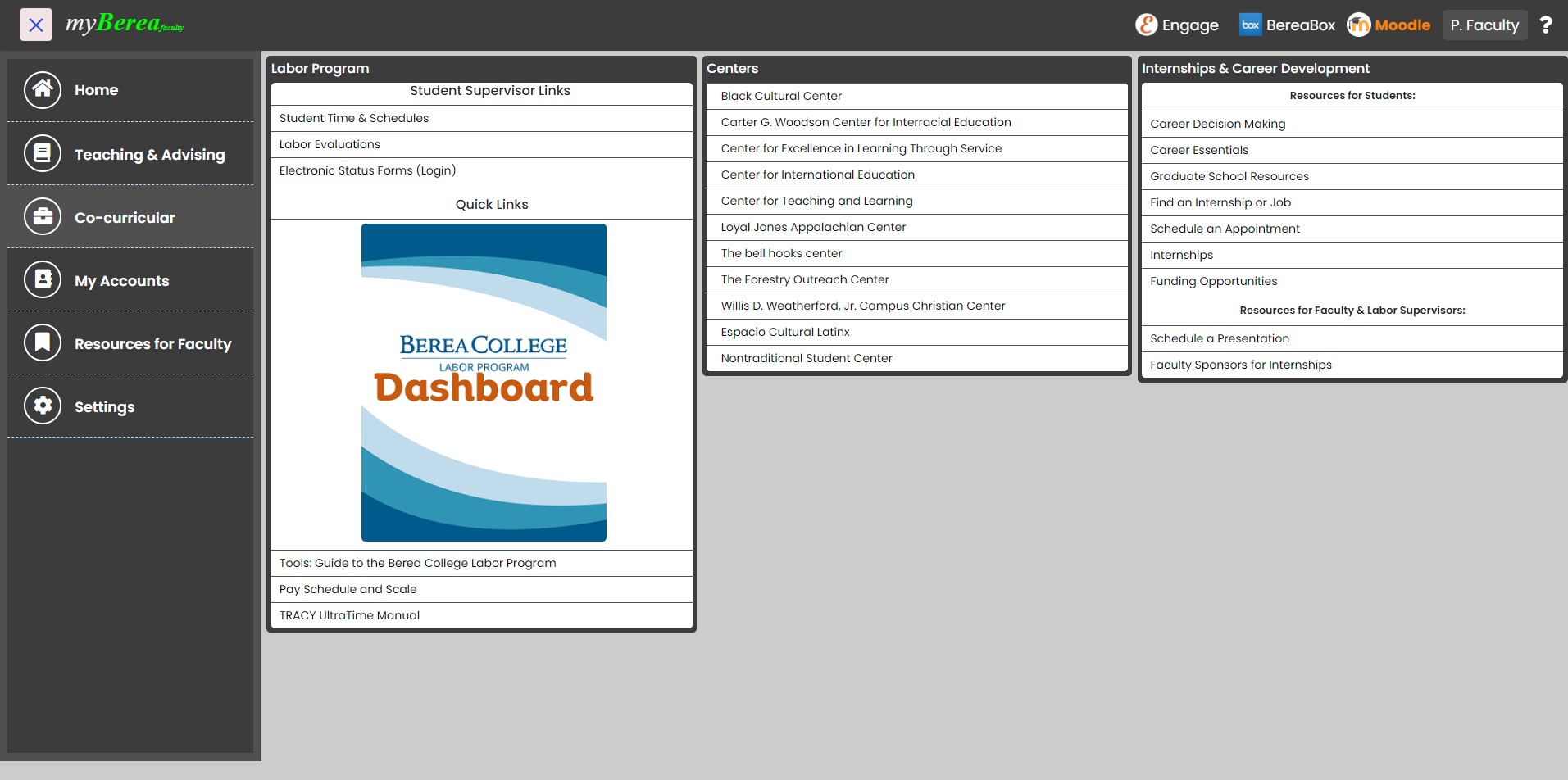
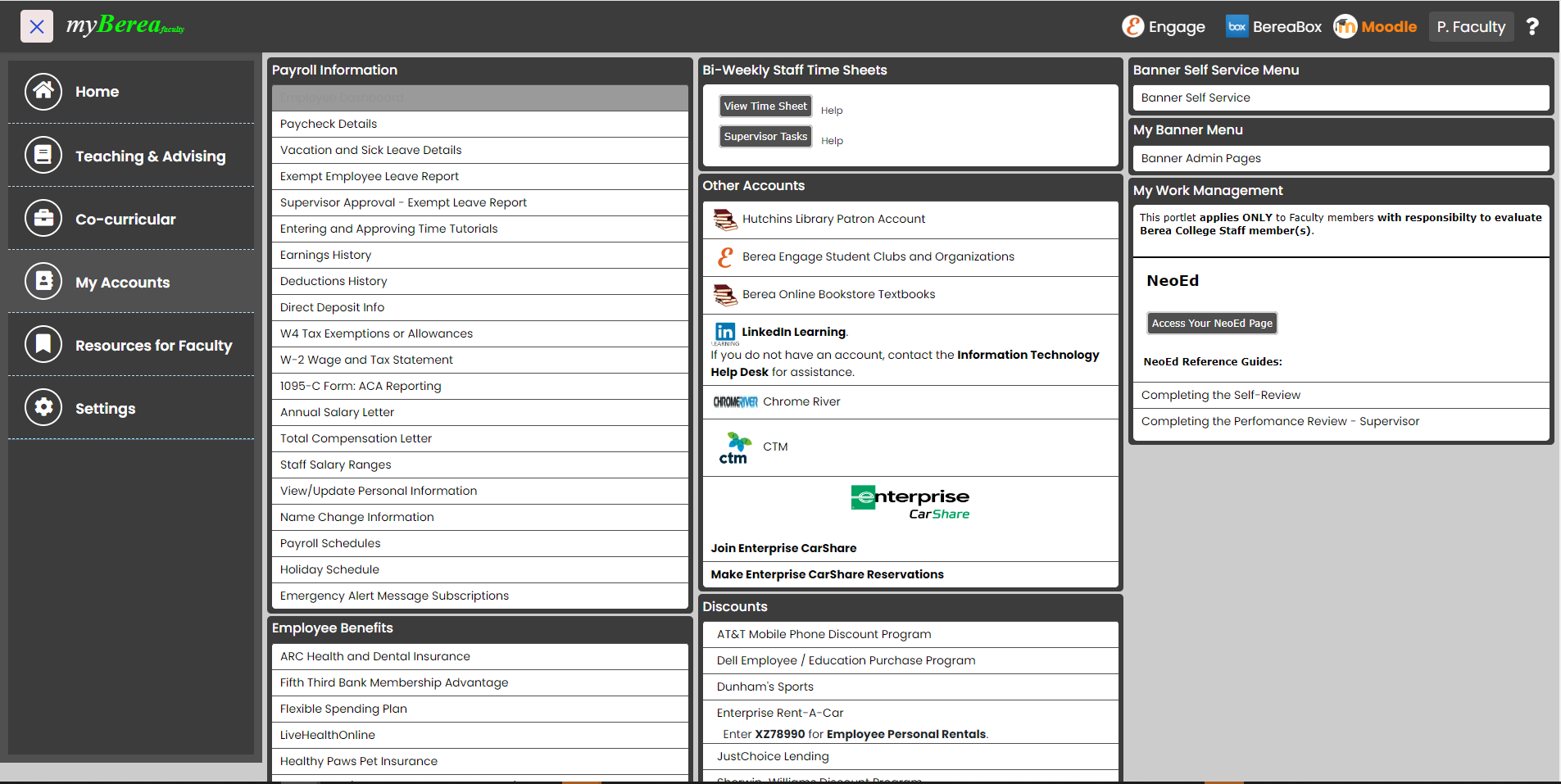
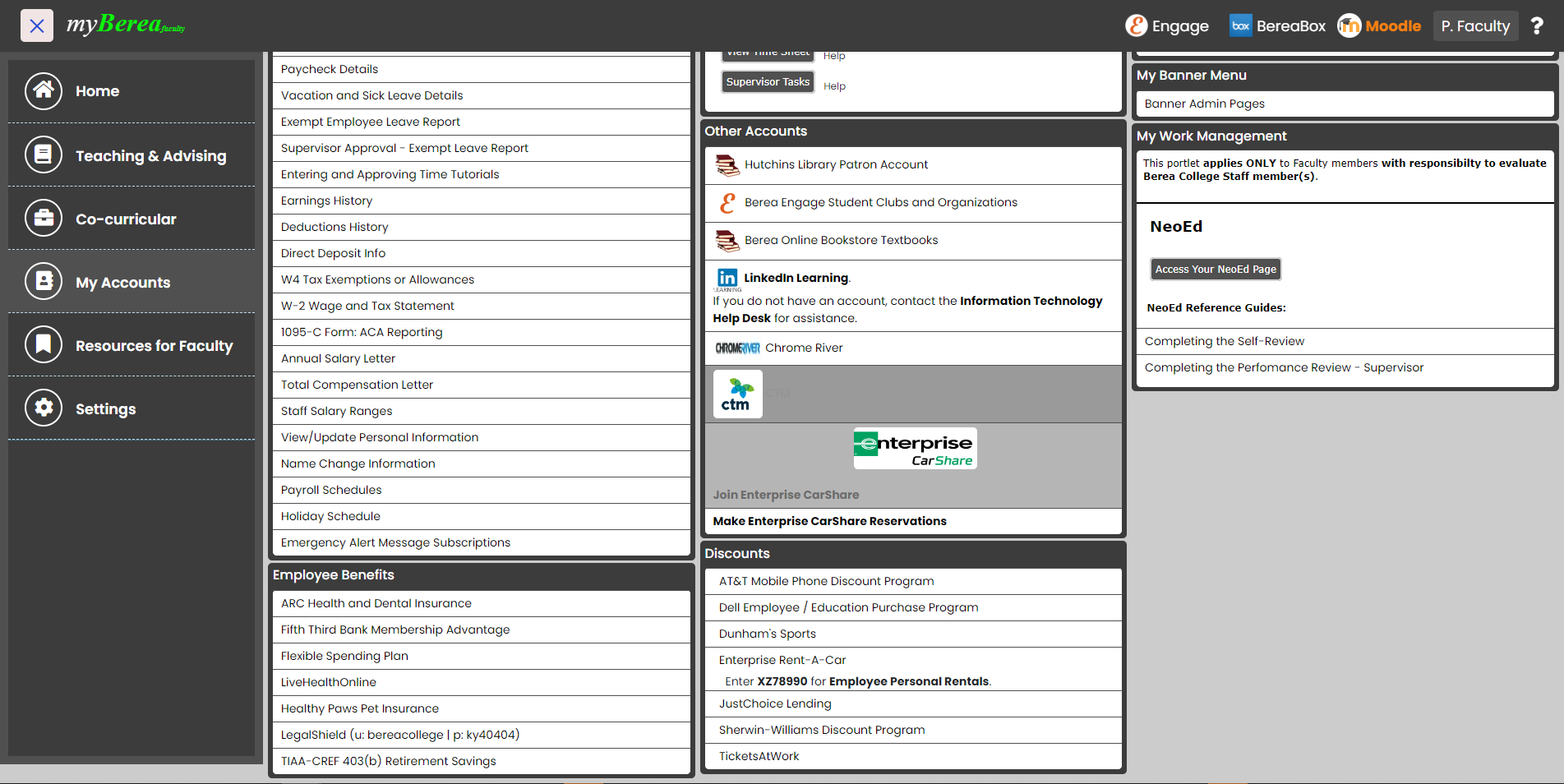
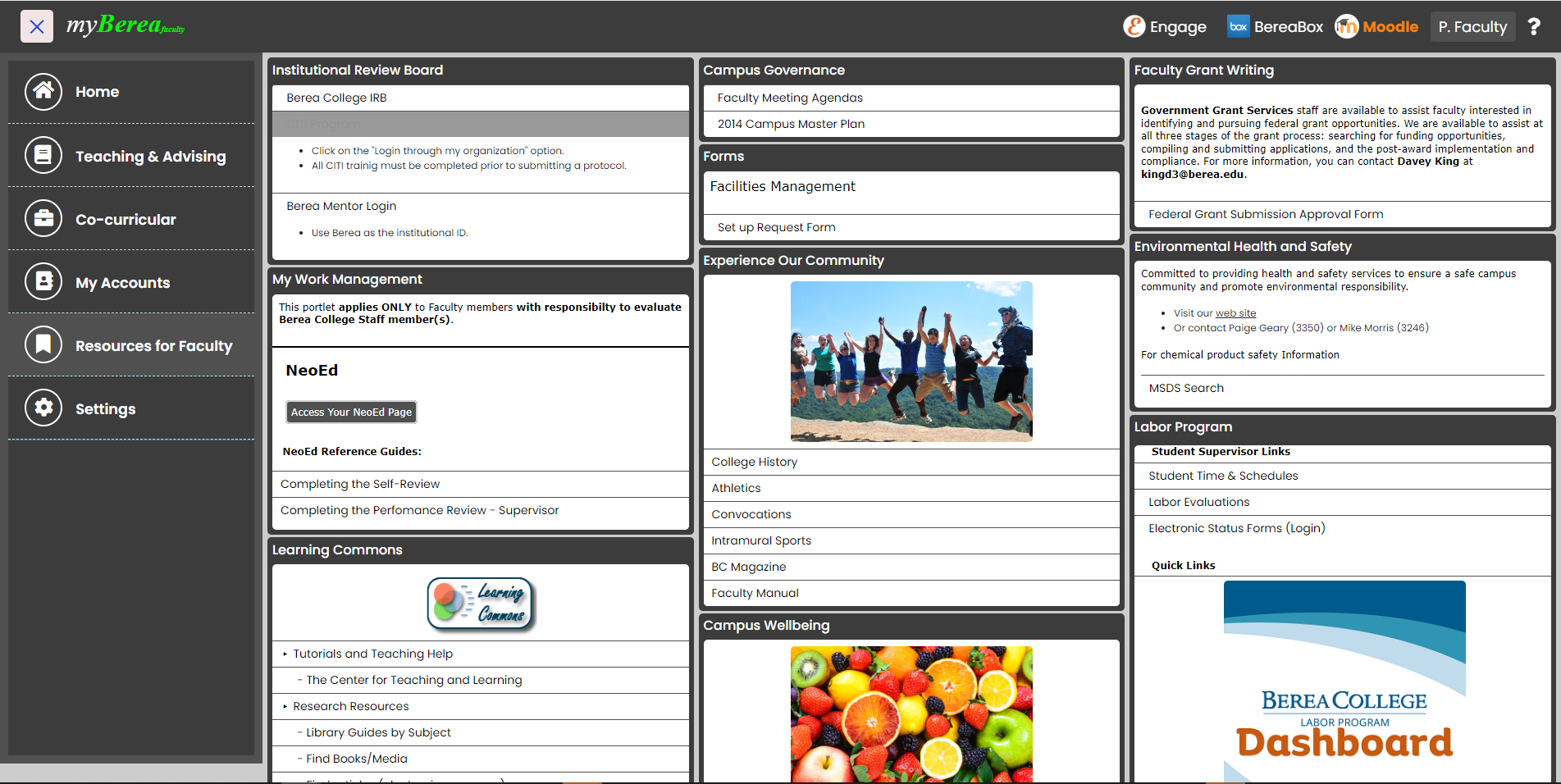
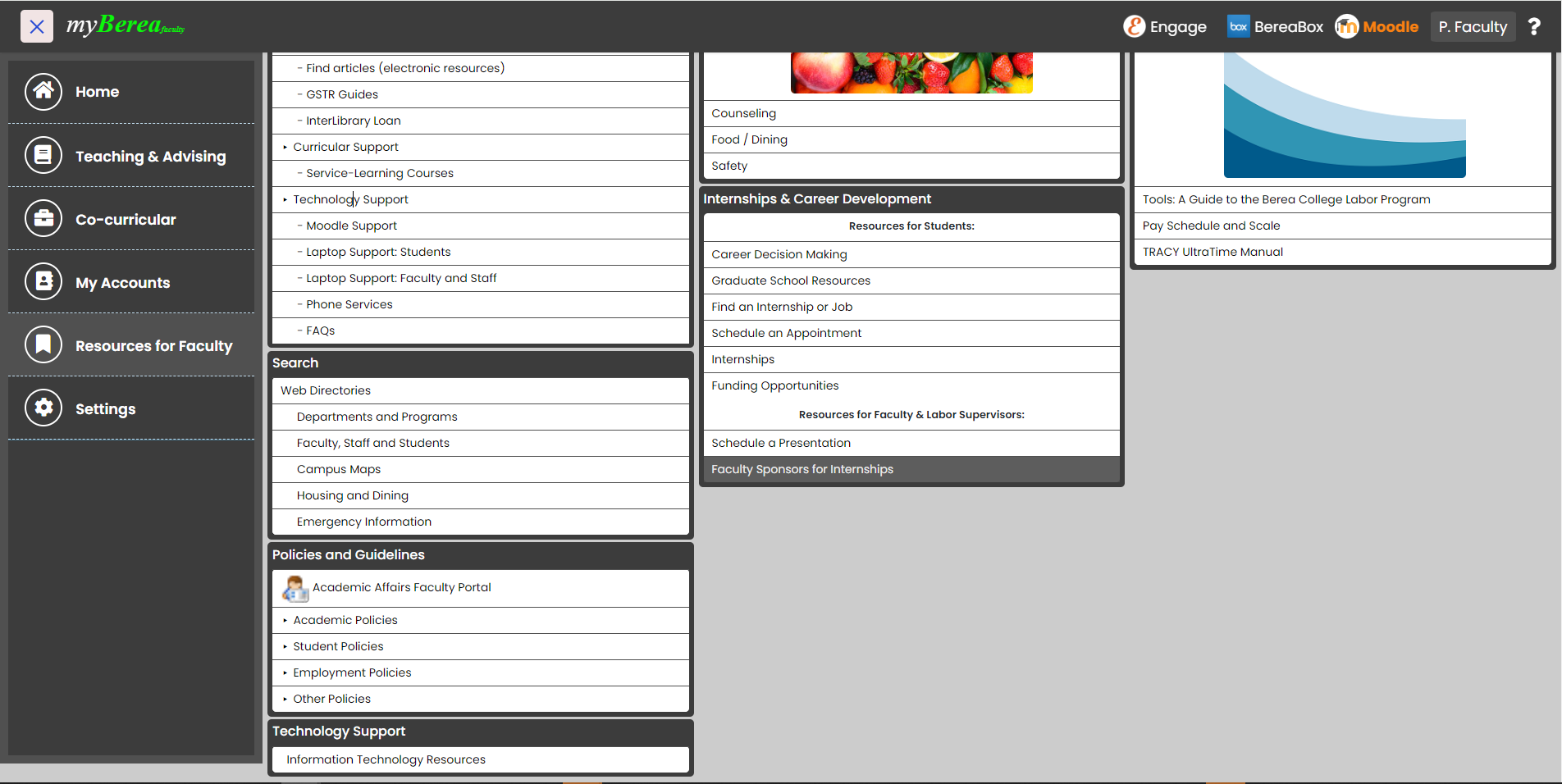
Click one of the three tabs above, Faculty, Staff or Students,
to see screenshots of the different content available for each user group.
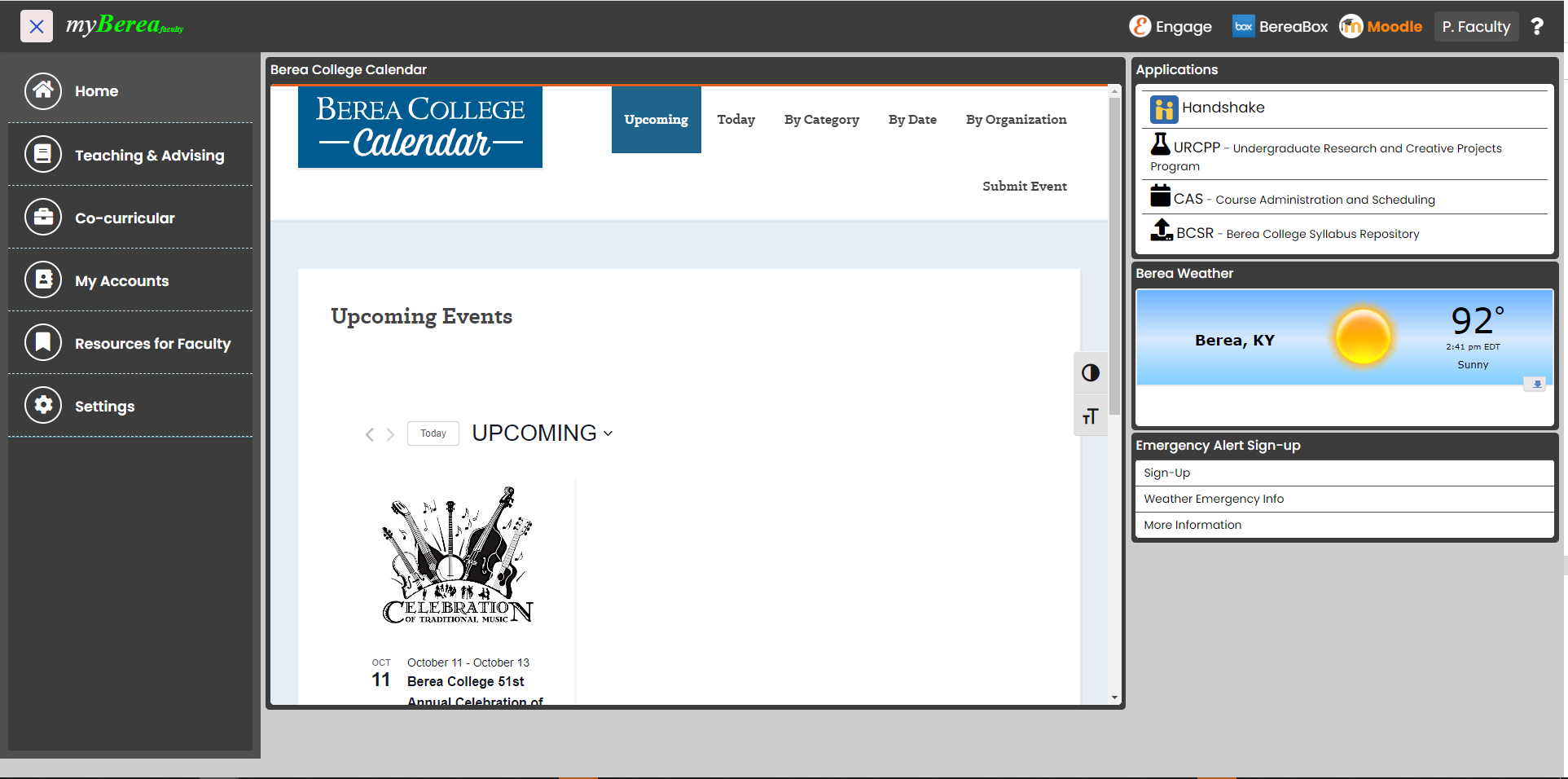
The first page a user sees when they connect to myBerea is the Home page.
You will notice the navigation bar on the left side of the site. Click the X icon on the top-left corner of the page
to open/close the navigation bar.
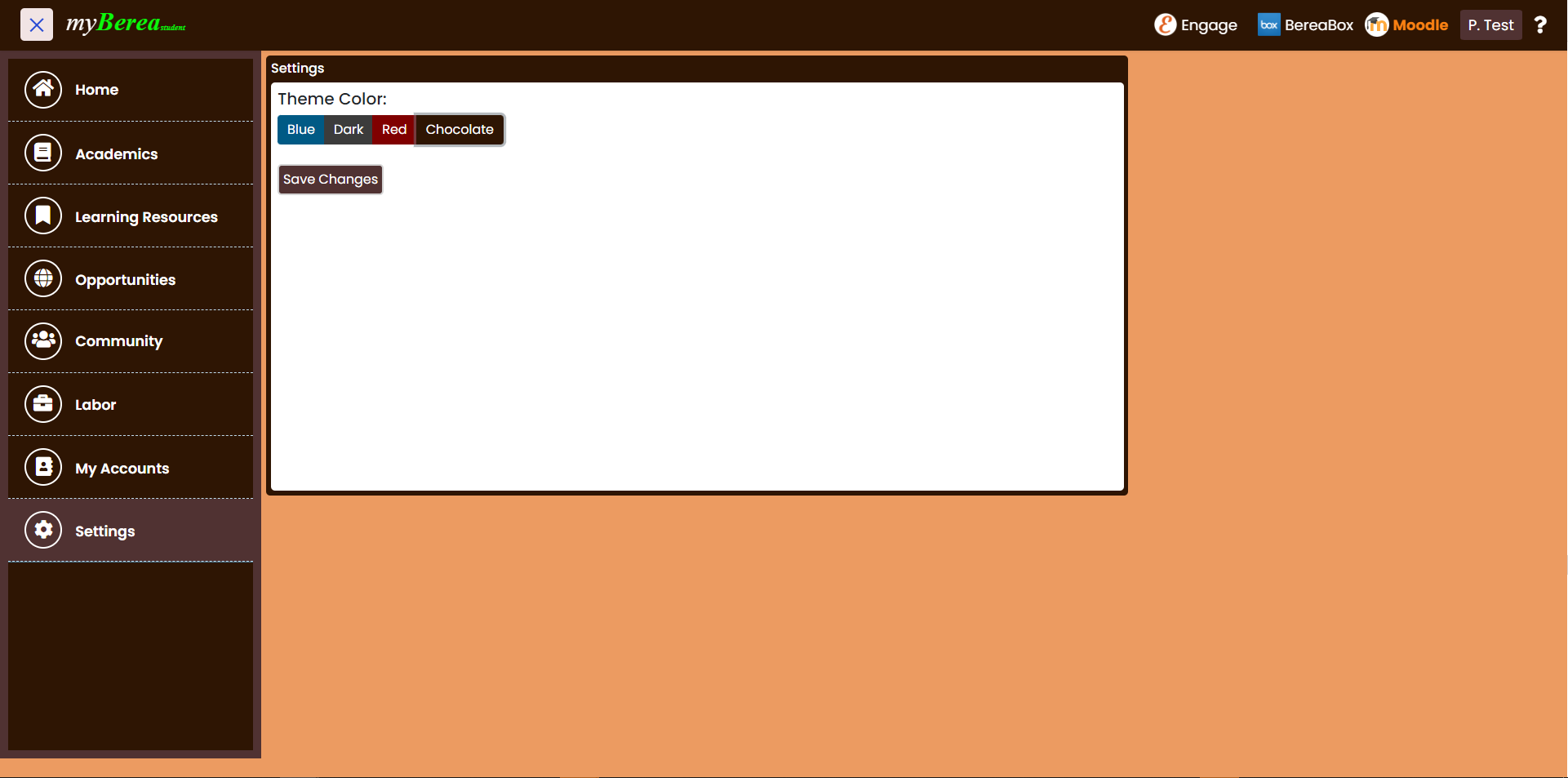
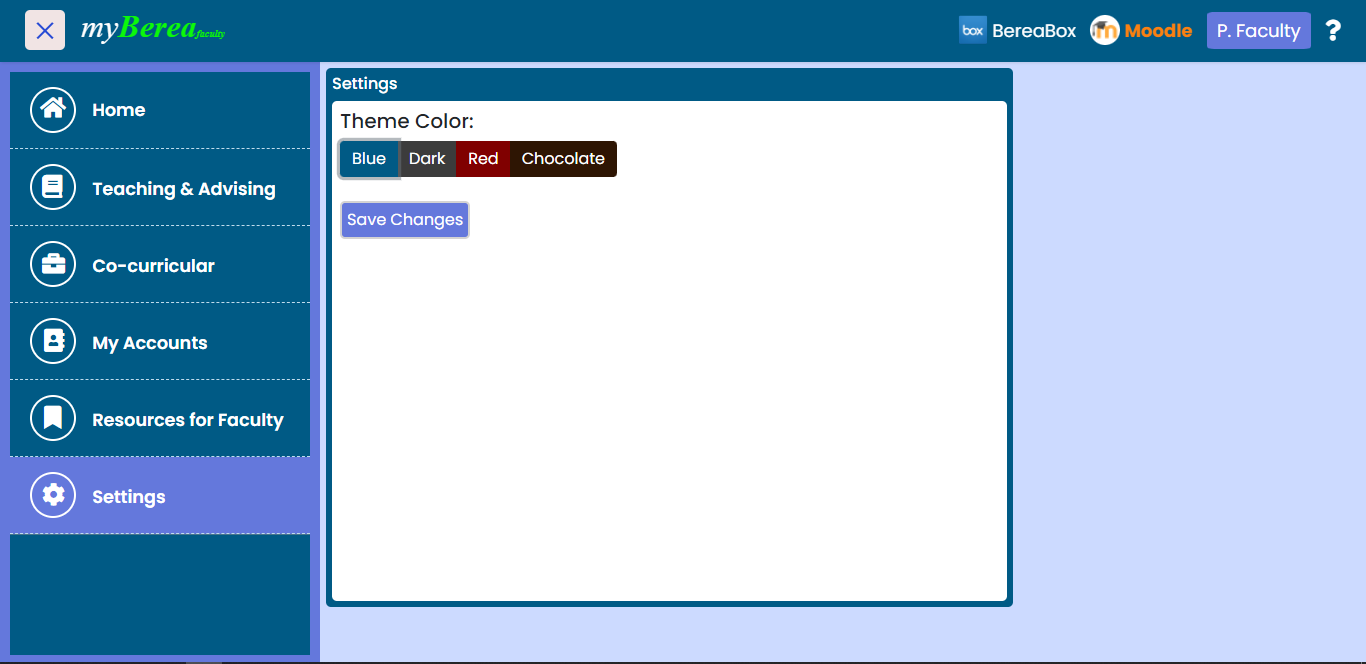
Click the Settings option from the menu to change the theme color of your portal.
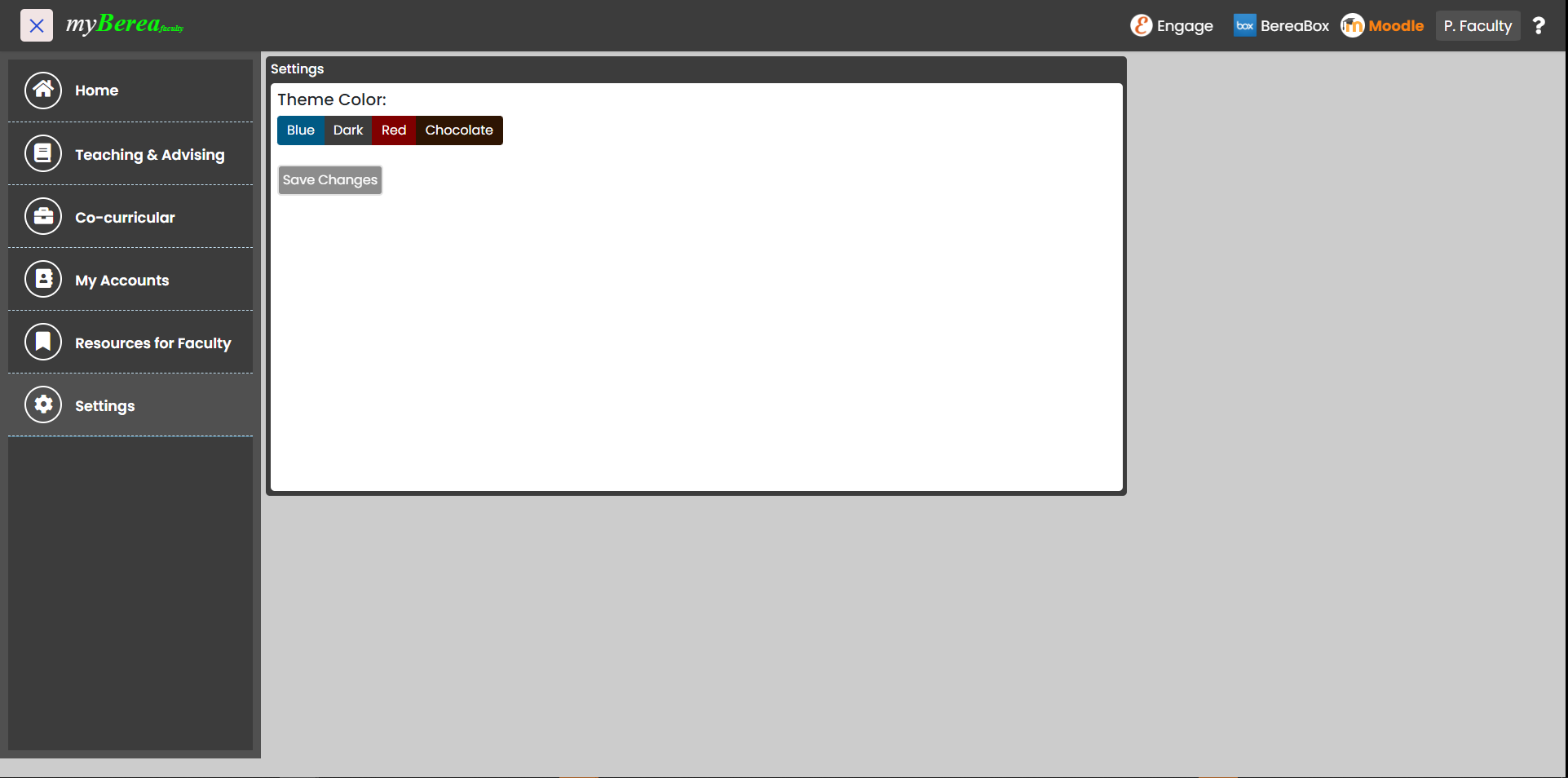
Choose the color you want to set and click Save Changes button to set the color as a default theme color of your portal.
Click one of the three tabs above, Faculty, Staff or Students,
to see screenshots of the different content available for each user group.
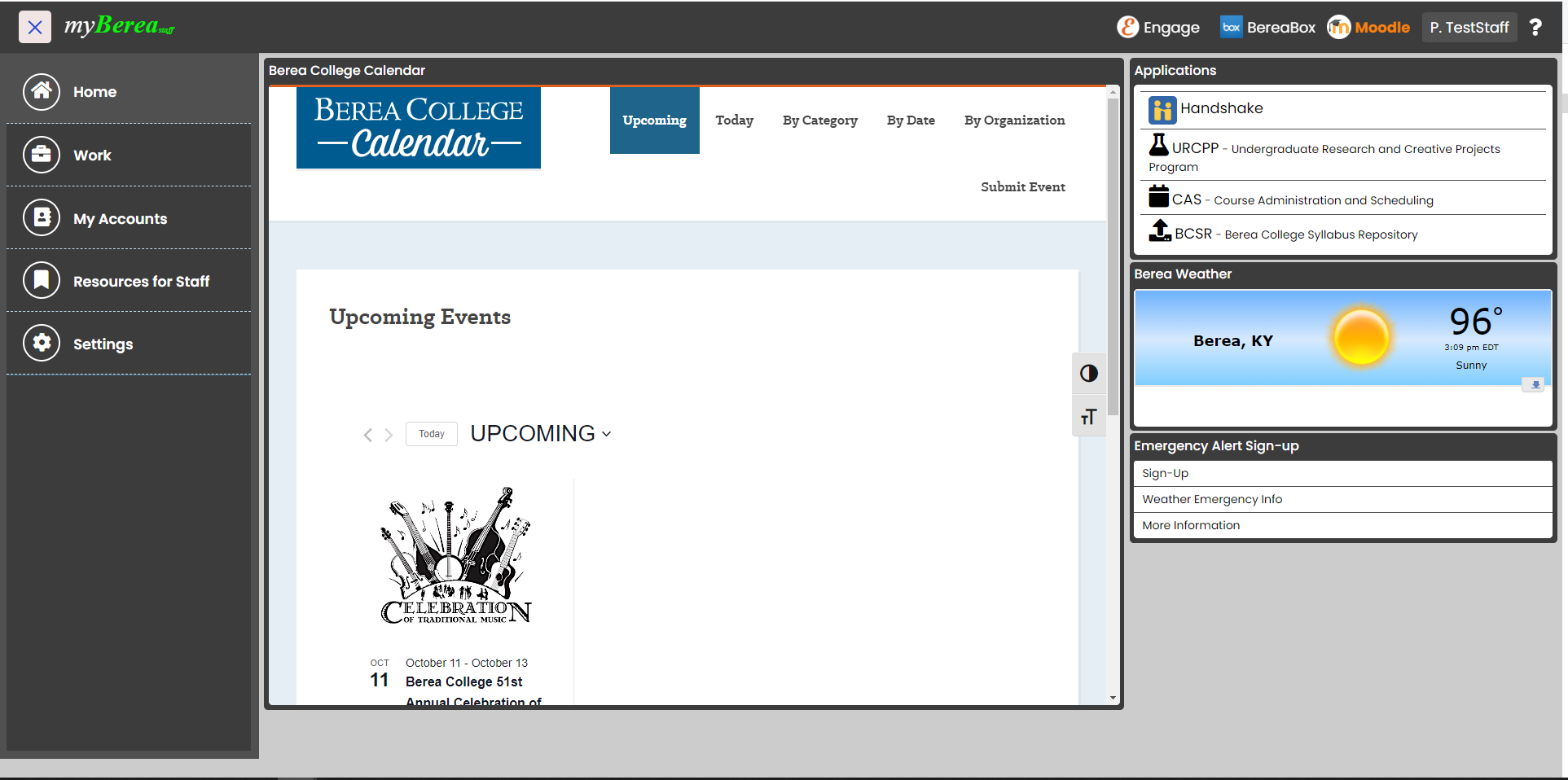
The first page a user sees when they connect to myBerea is the Home page.
You will notice the navigation bar on the left side of the site. Click the X icon on the top-left corner of the page
to open/close the navigation bar.
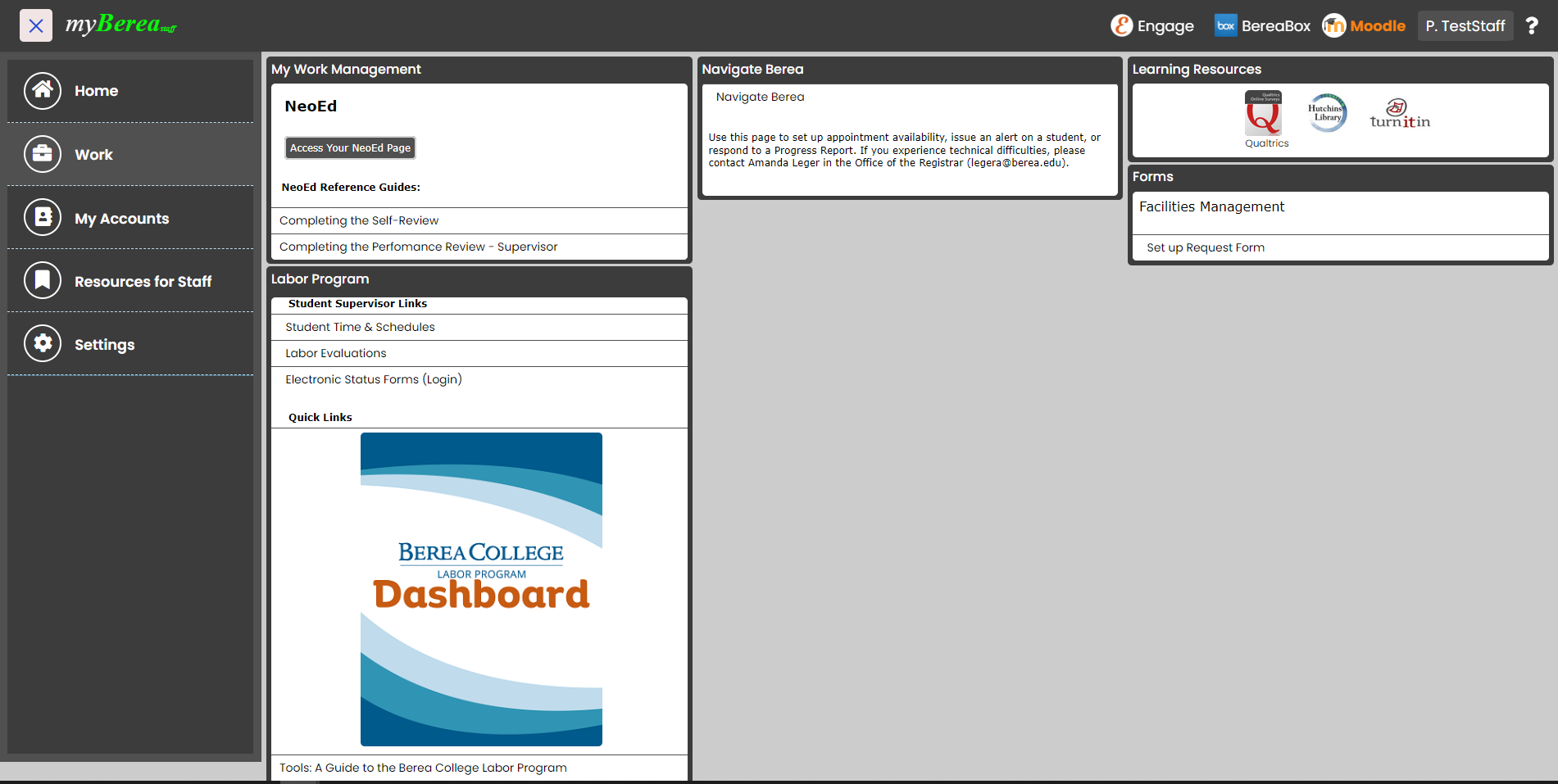
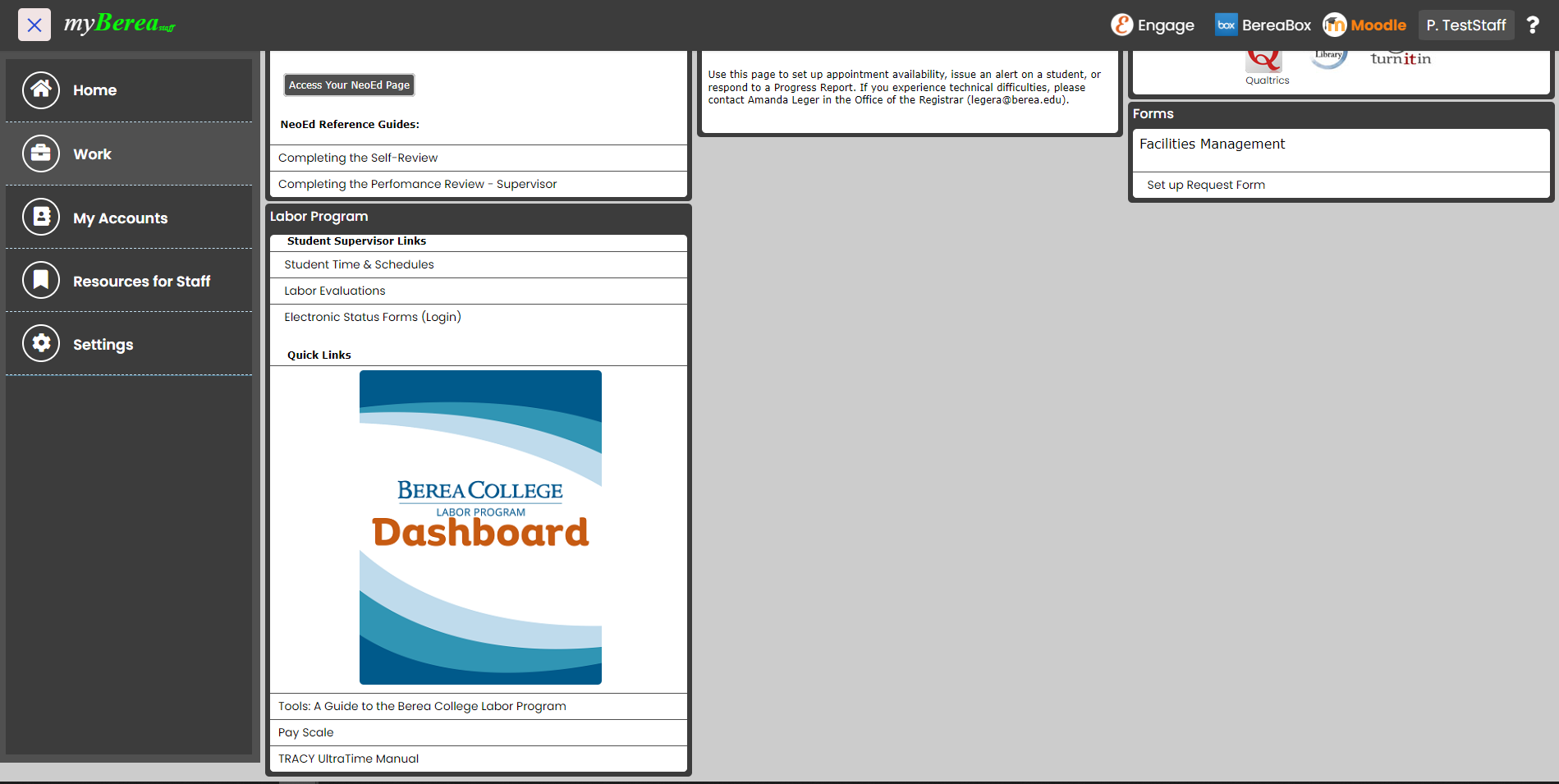
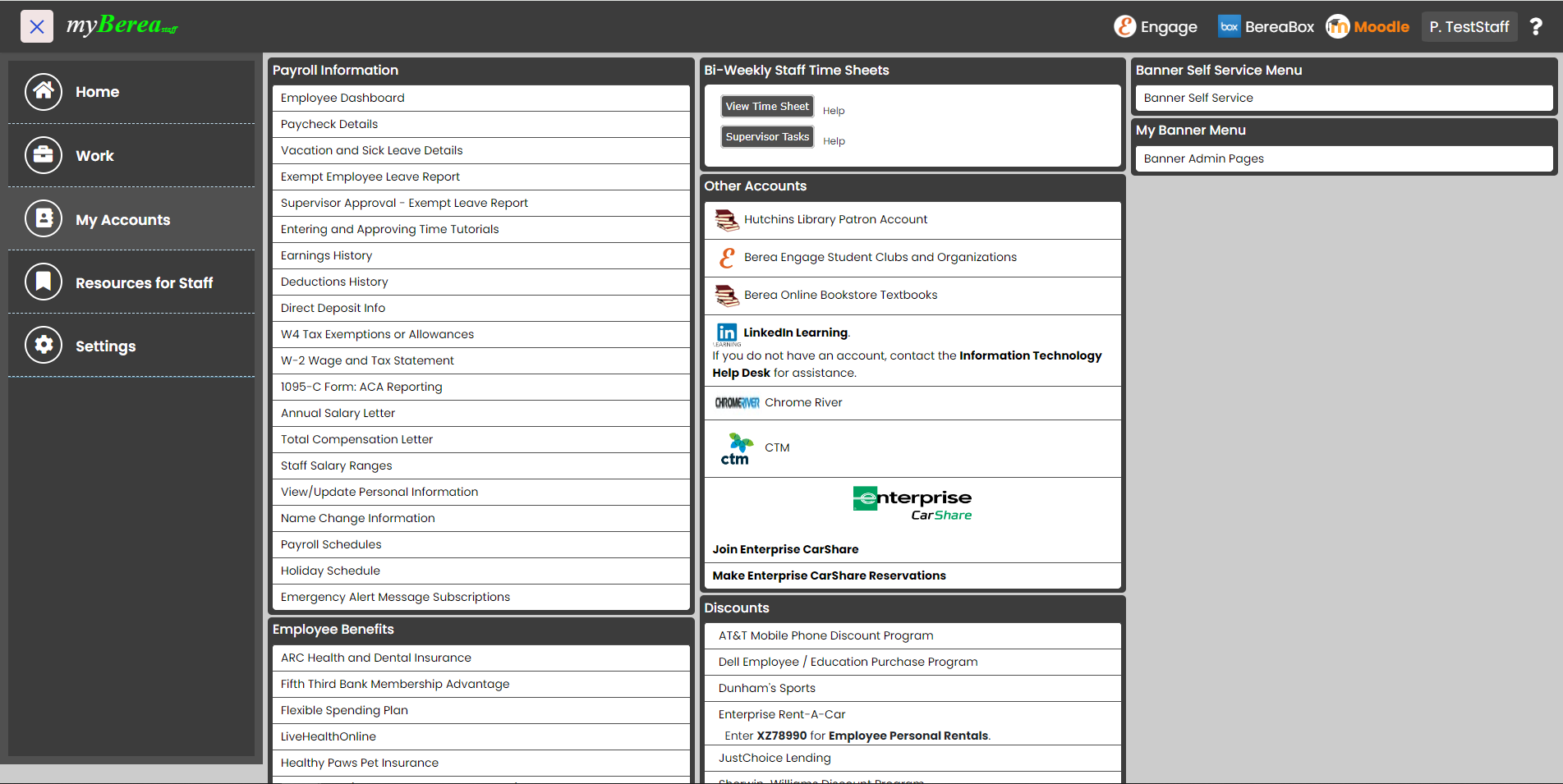
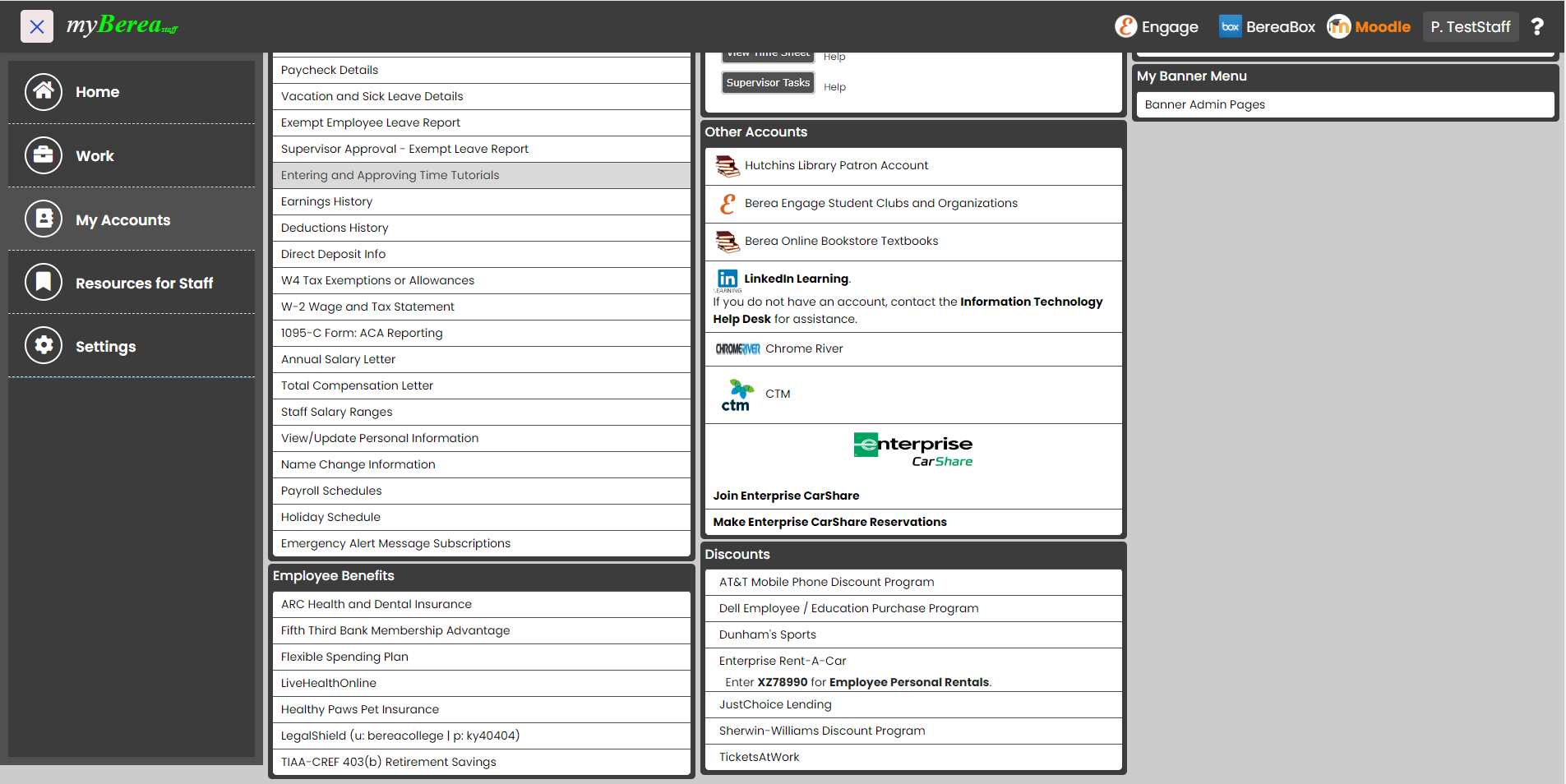
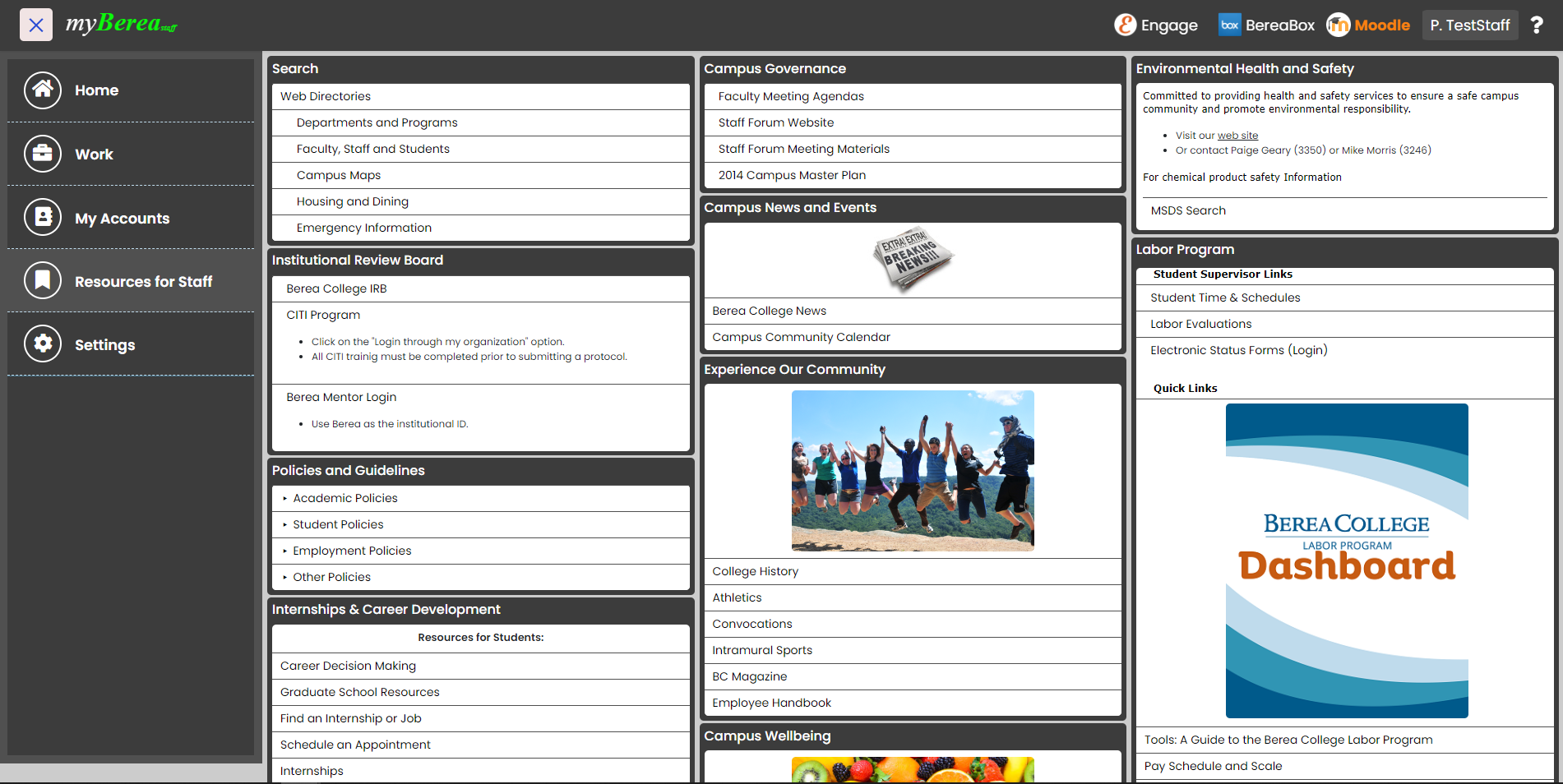
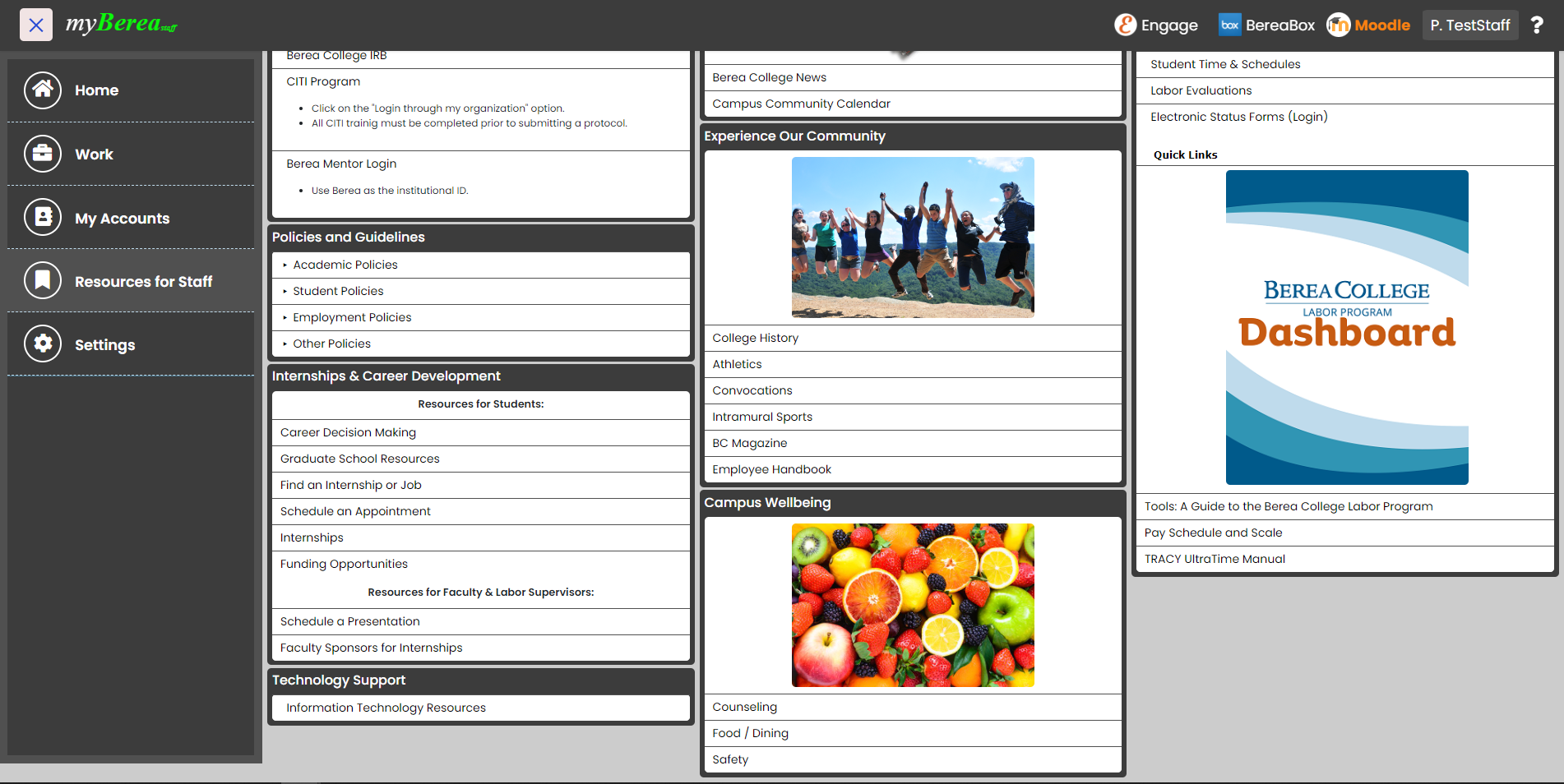
Click the Settings option from the menu to change the theme color of your portal.
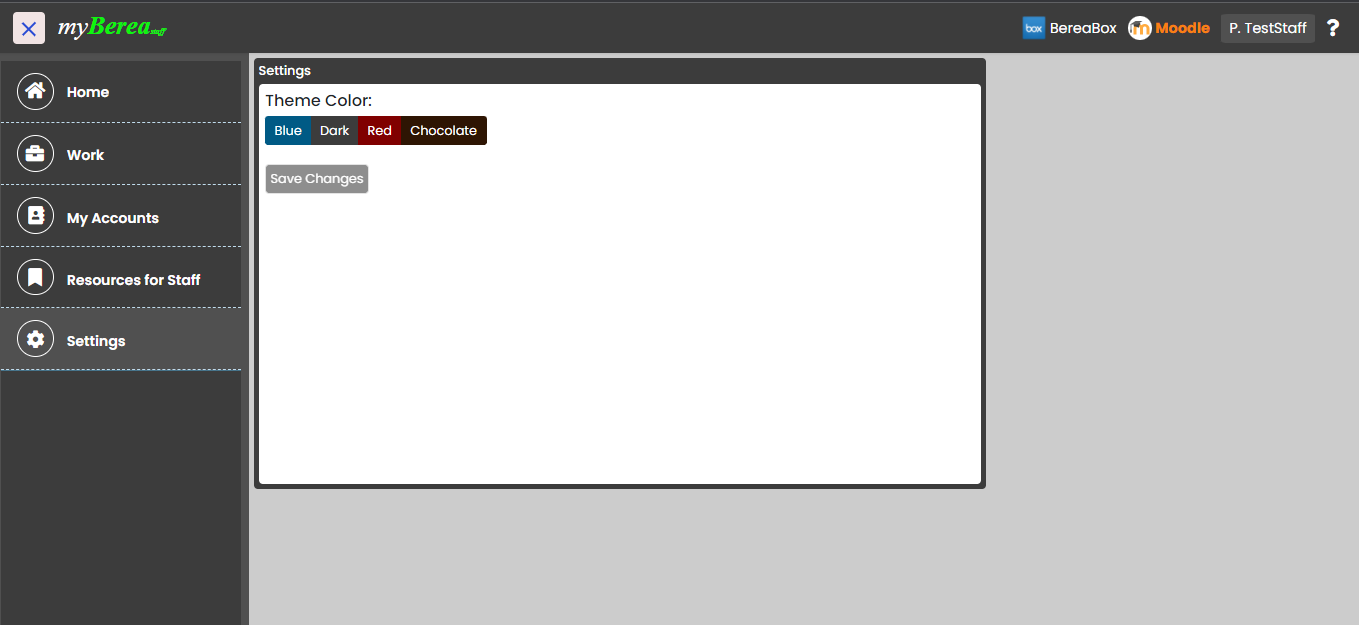
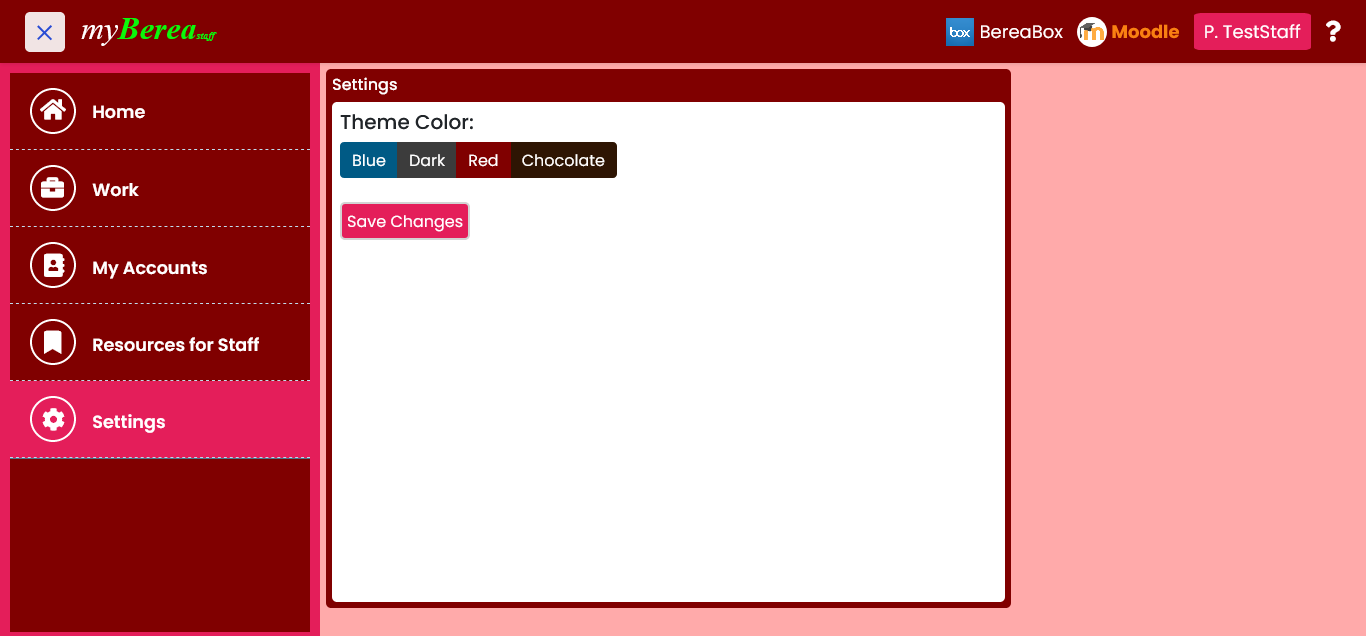
Choose the color you want to set and click Save Changes button to set the color as a default theme color of your portal.
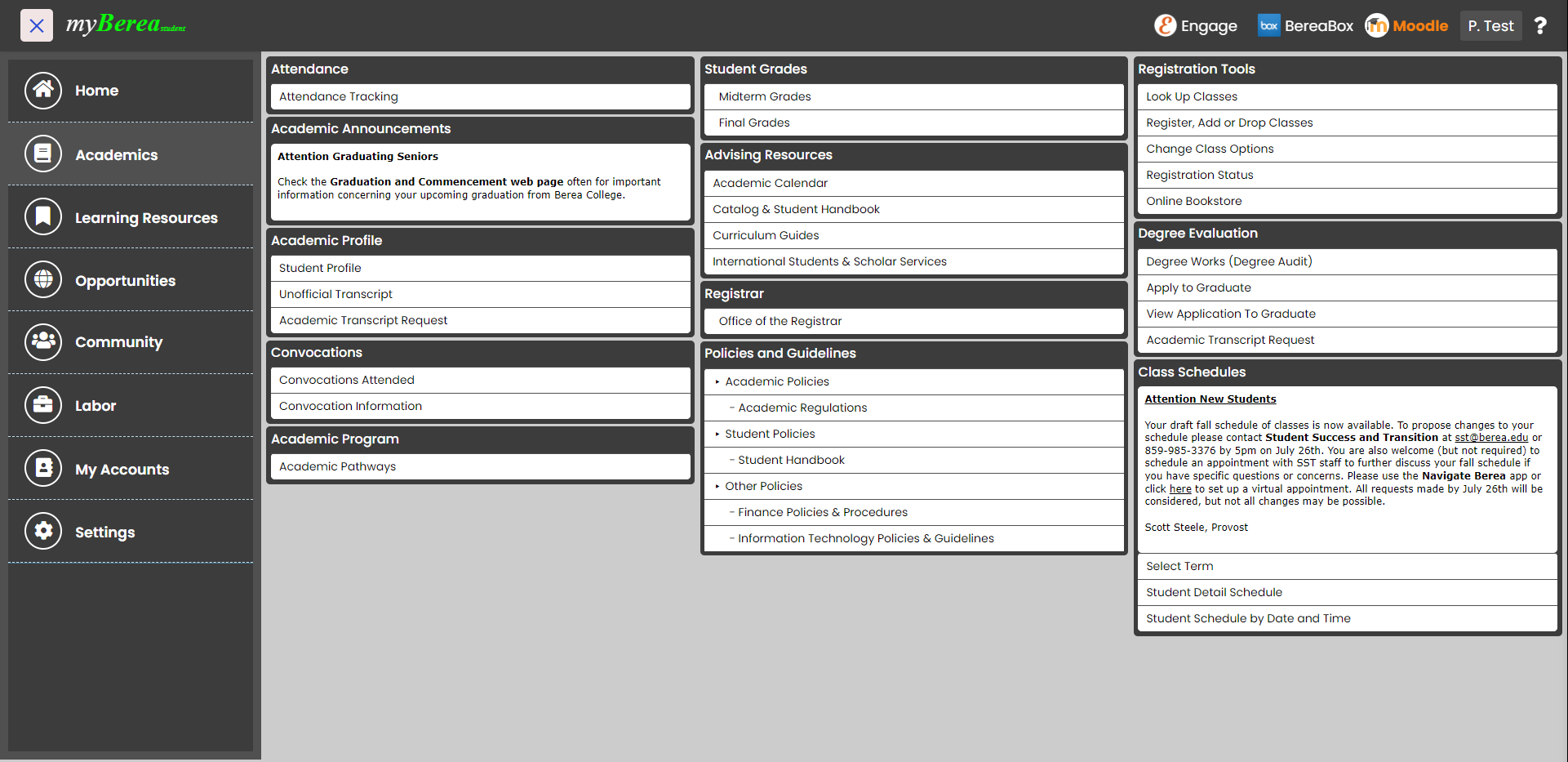
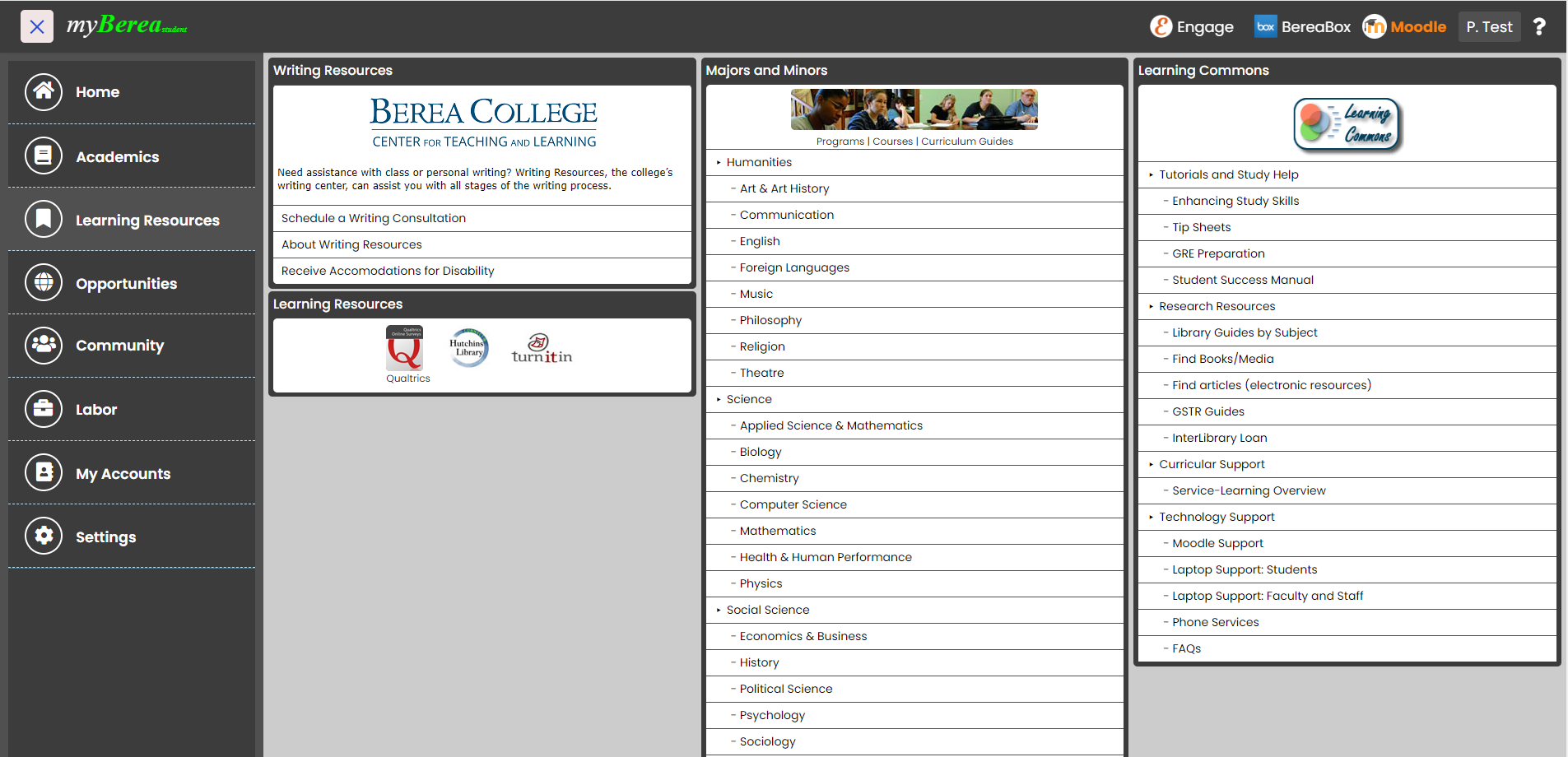
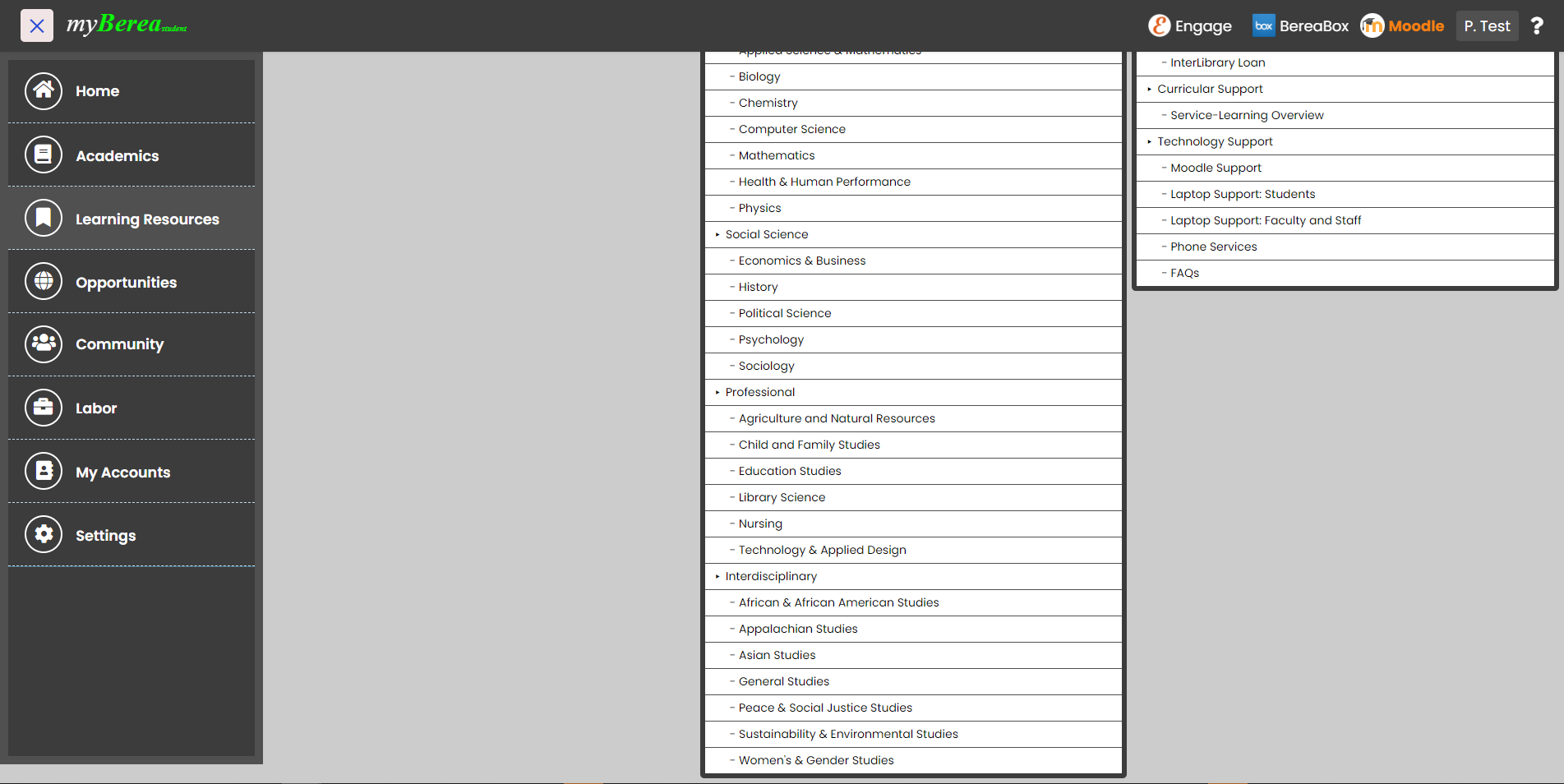
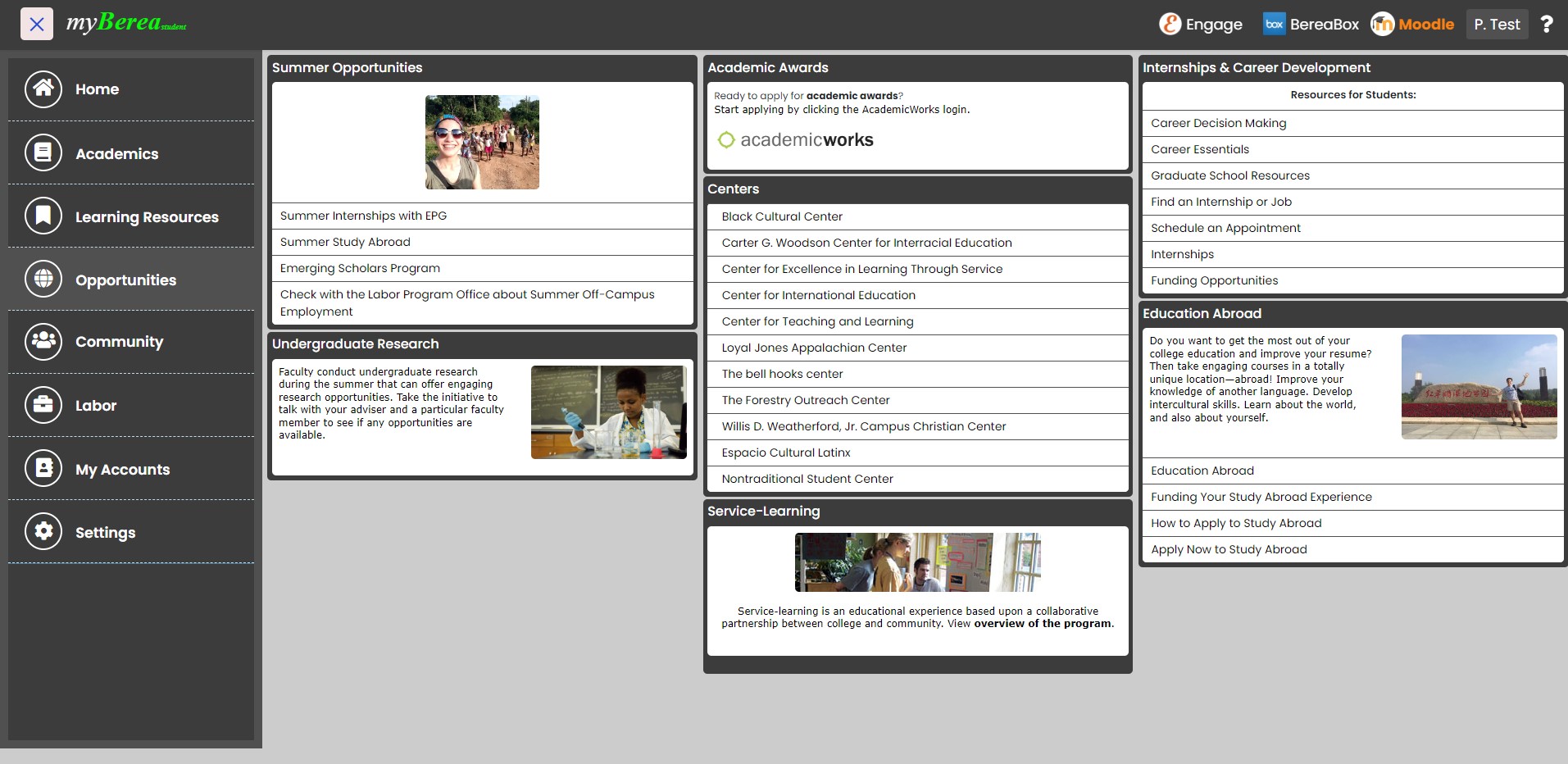
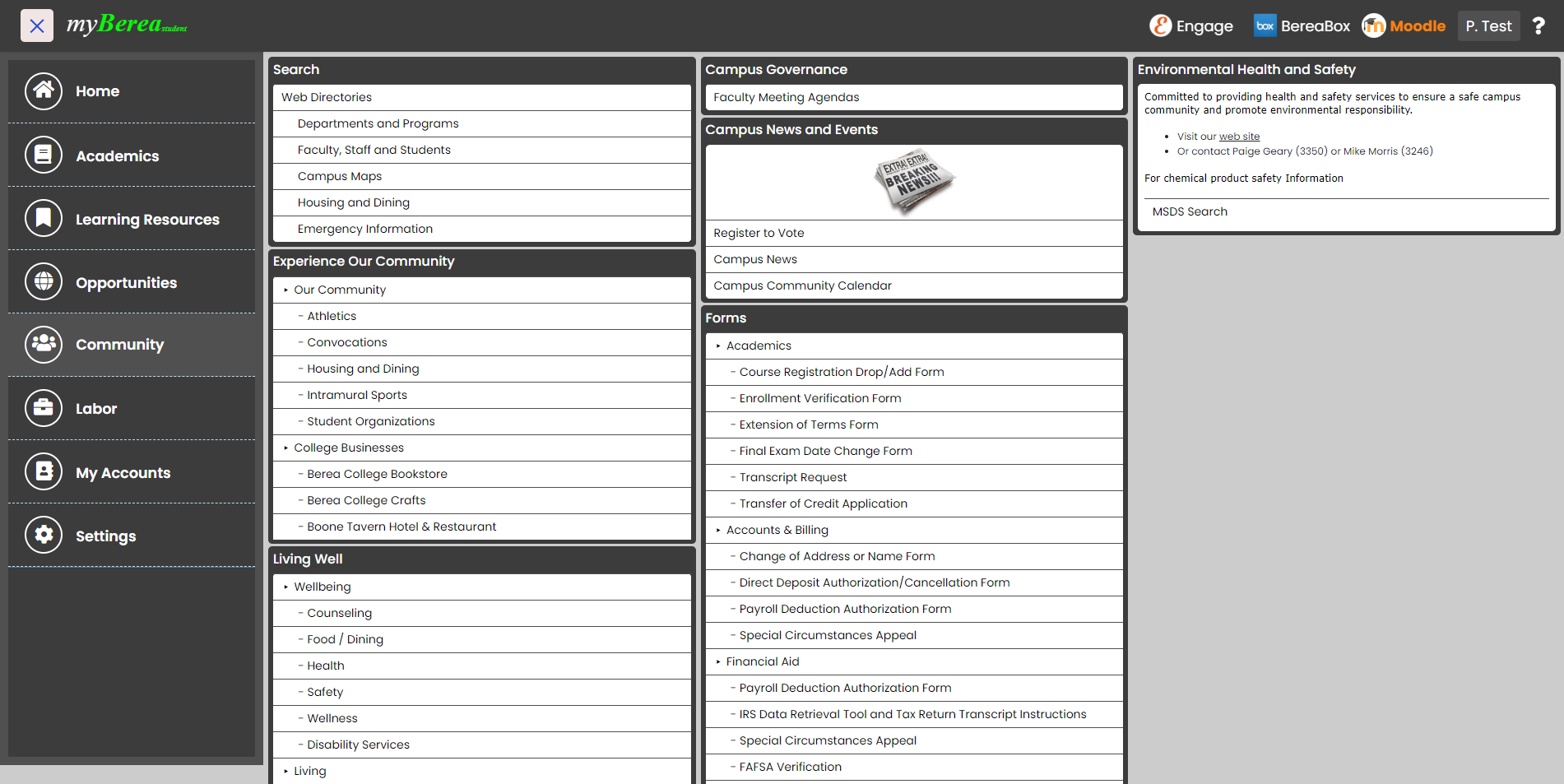
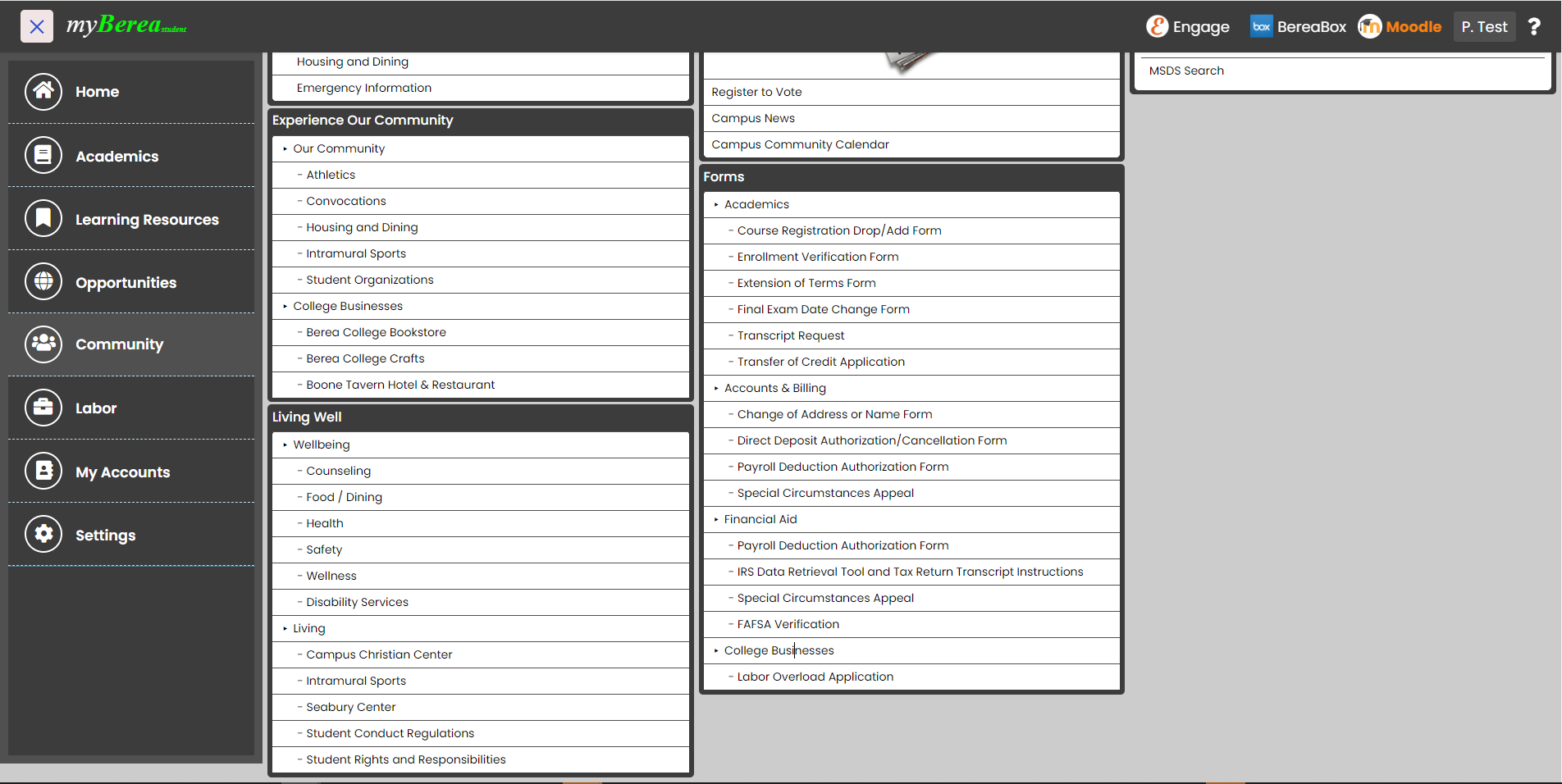
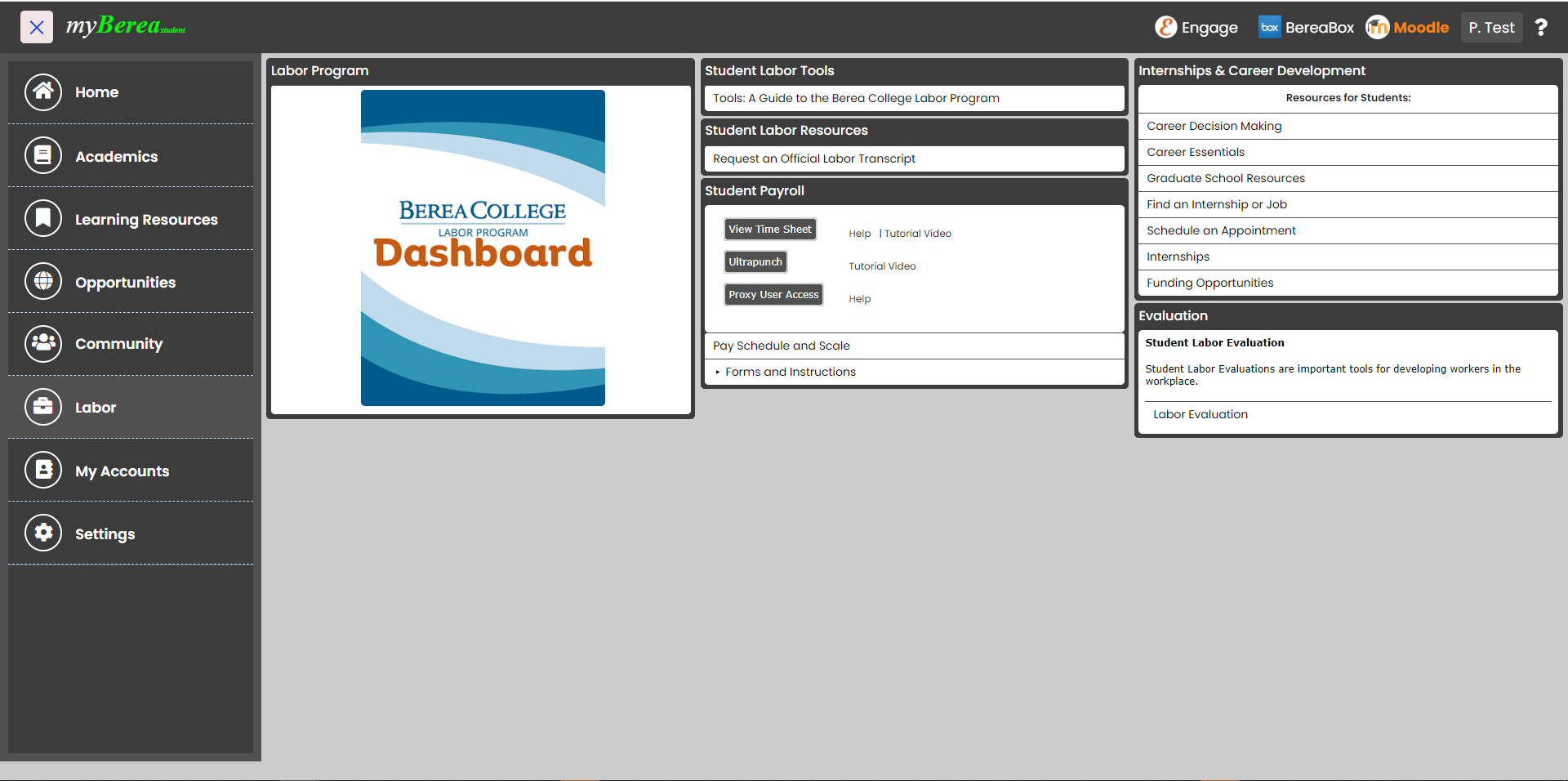
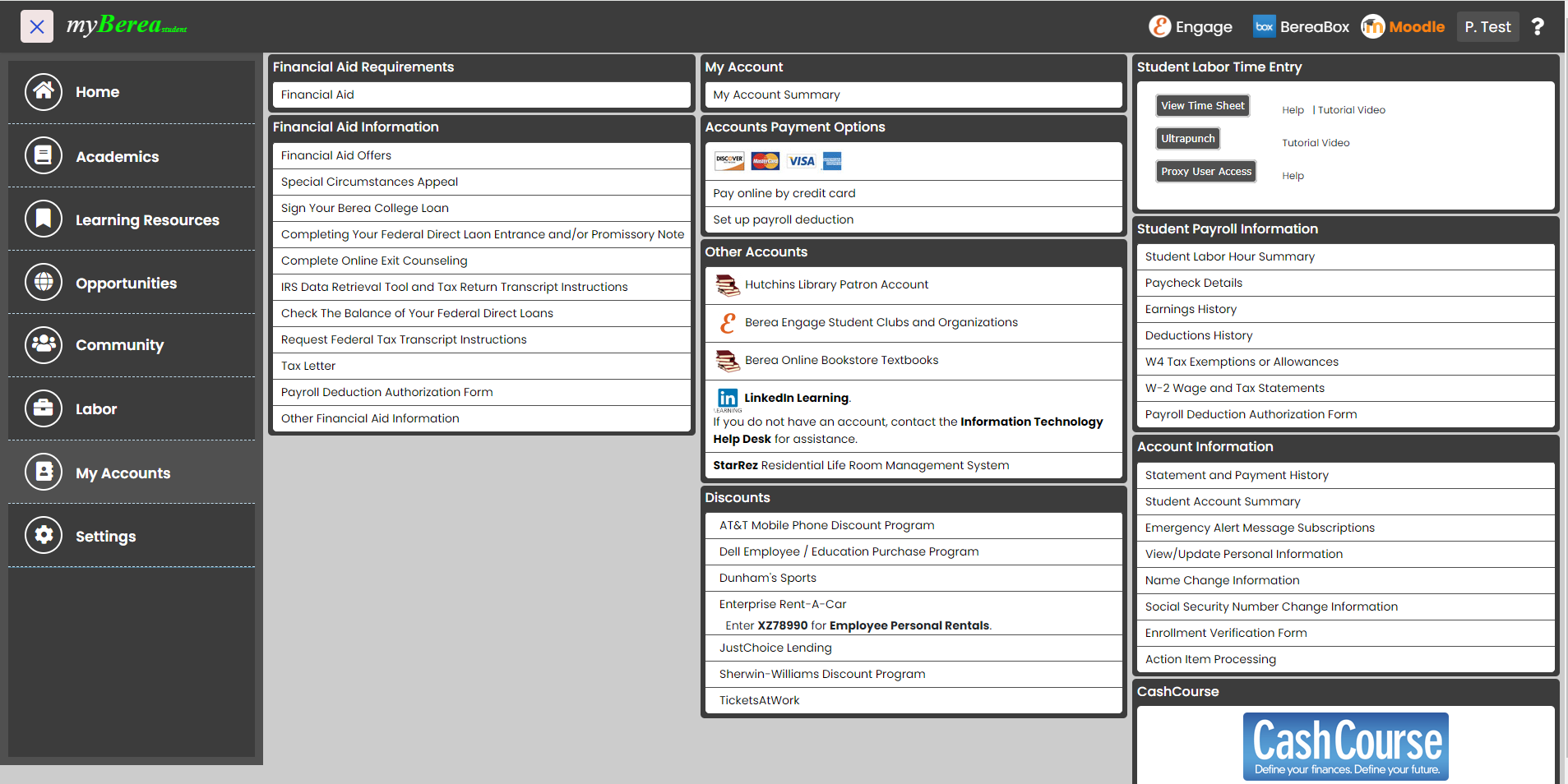
Click one of the three tabs above, Faculty, Staff or Students,
to see screenshots of the different content available for each user group.
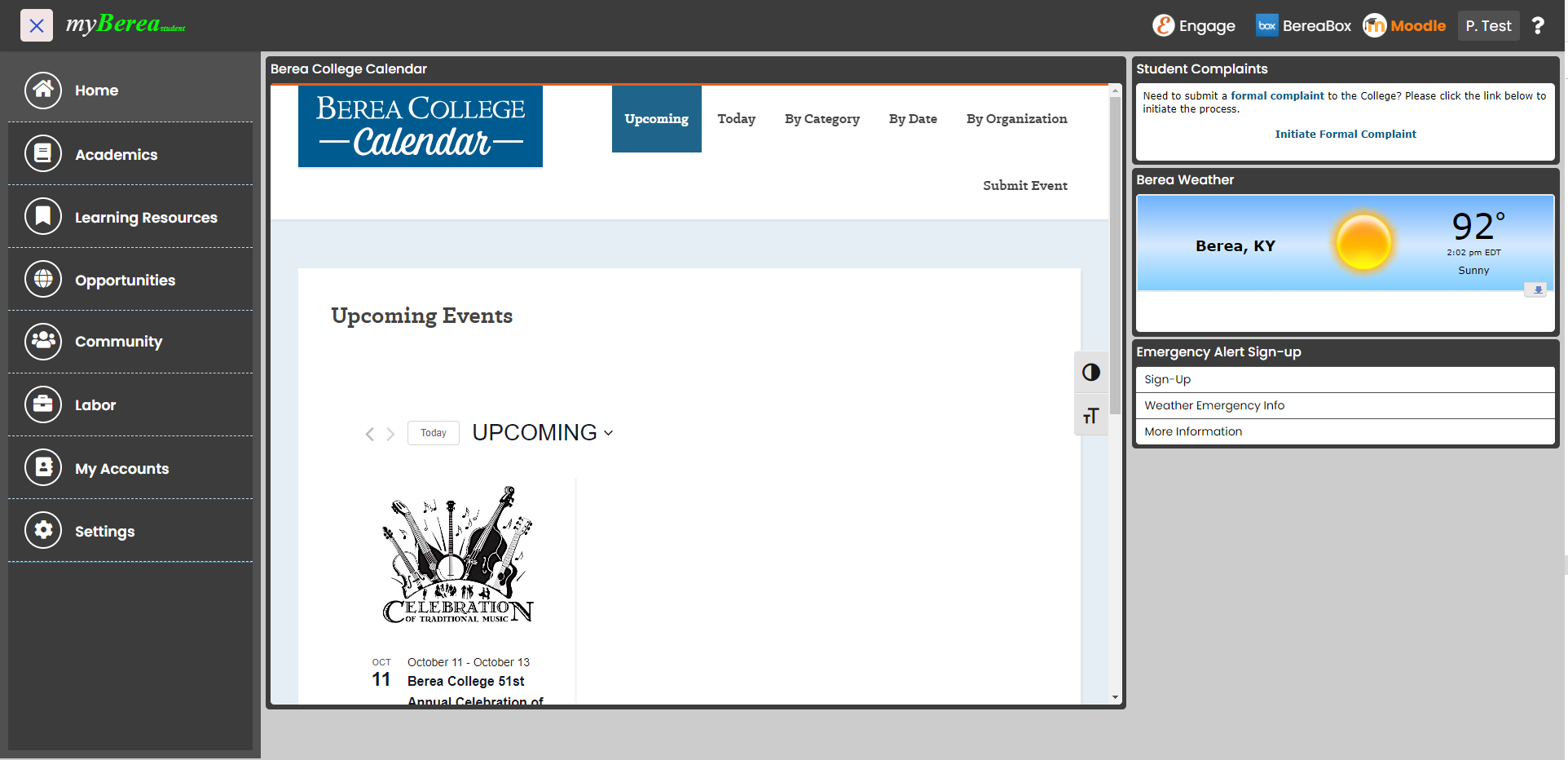
The first page a user sees when they connect to myBerea is the Home page.
You will notice the navigation bar on the left side of the site. Click the X icon on the top-left corner of the page
to open/close the navigation bar.
Click the Settings option from the menu to change the theme color of your portal.
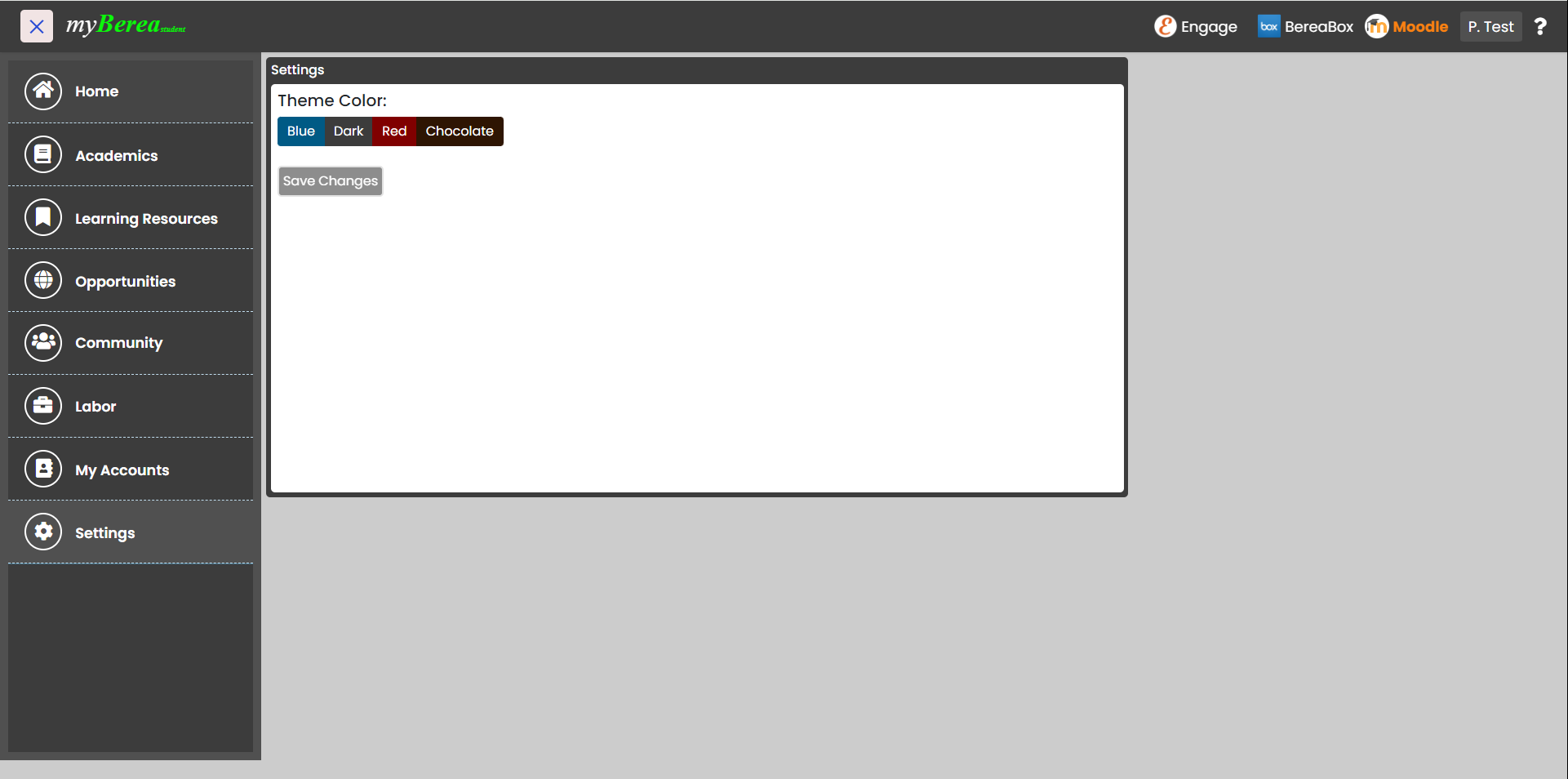
Choose the color you want to set and click Save Changes button to set the color as a default theme color of your portal.